We held a webinar on Data Cleaning in Excel. Well, there was some technical glitches but I think we have managed to find out the root cause and way around the issues to prevent similar glitch in future ones.
You can watch the video of the webinar here, might want to fast forward the glitched part.
As a compensation, I will be taking you through the crux of what I shared in the webinar with plenty easy to follow screenshots.
1. Text to Column
Sometimes, you copy data from other applications into Excel and they don't get arranged the way you want. Maybe you copied customer data records with first name, last name and email and instead of Excel putting them in different columns/fields, you get them sandwiched into one field. How do you easily remedy that?
Well, I am happy to introduce you to Text to Column.
To fix this, go to Data Menu, Text to Column and in a matter of 3, 4 clicks you are done. Even for a hundred thousand records table.
2. TRIM
Got text data with the spacing irregularly done? No worries, meet TRIM.
It can turn records that look like this:
Into this pleasant looking one:
3. PROPER and UPPER
Got text or names written with all lower case or terrible mix of the cases? Time to fix them looking Proper or all in UPPER.
4. Go To Special, Blanks
There is something definitely special about Go To Special beyond its name.
Have you got records arranged disorderly and you want to align the arrangement. Take for example, the one in the screenshot below.
With Go To Special, select Blanks. Then right click on the highlighted Blanks and Delete, shifting cells to the left. And, voila! It is done!
5. Removing Duplicates
Say you have a table with duplicate records. How do you remove the duplicate entries, leaving one unique record?
You guessed right: by using remove duplicates.
Here is a sample problem to attack.
First, we'll make Excel show us the duplicate records using conditional formatting. It's not a requirement. Just doing it for fun or maybe you really want to see the duplicate records before deleting them.
Now let's remove the duplicate values. Go to Data Menu, Remove Duplicates.
See result below. Sparkling clean. No more greasy duplicates.
6. Text 2 Number
Sometimes, you import or copy numeric data into Excel and they show up as Text. For you to run regular calculations, with peace of mind, on them you need to convert them back to numbers.
If you are lucky, which is the usual case, Excel will show you a diamond tool tip to guide you in converting the Text numbers to Number numbers😀.
Say today you weren't that lucky. No diamond tool tip. How do you proceed, and considering there are hundreds or thousands of records to fix at once.
Well, use what I call Text 2 Number.
Just type 1 in any empty cell, copy it and paste special on the problematic entries but as Value and Multiply.
That fixes it in one step for you.
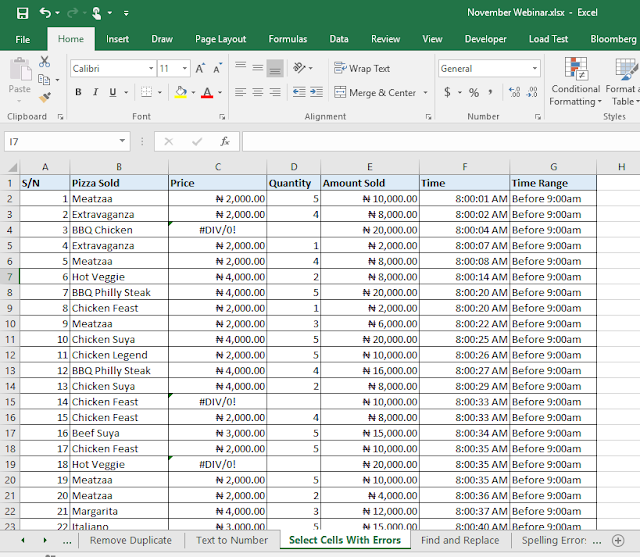
7. Go To Special, Errors
How do you select Error cells in your report and maybe replace them with something more meaningful or delete them all at once?
Again, meet Go To Special.
8. Find and Replace Formula Parts
Find and Replace can work also on formula components. I often use it in making giant templates or in cleaning up my formulas after considerable report structure change.
9. Spelling Check and Auto Correct
Surprised? Well, Excel does have spell check and auto correct.
And those are the Data Cleaning tips we treated yesterday during the webinar.
Don't forget to forward this to friends and family members who will find this useful and love you more for it. And you should subscribe to our webinar directory to be in the loop of all future webinar announcements.


